We have all been there. You sit down to "do content marketing," and three hours later, you have 15 open tabs, a headache, and one half-finished Instagram caption.
The promise of AI was supposed to be efficiency. But for most creators and marketers, it has just become noise. You have a tool for writing, a tool for images, a tool for scheduling, and they don't talk to each other.
The secret to 10x growth isn't using more AI tools. It’s chaining them together into a single, repeatable assembly line.
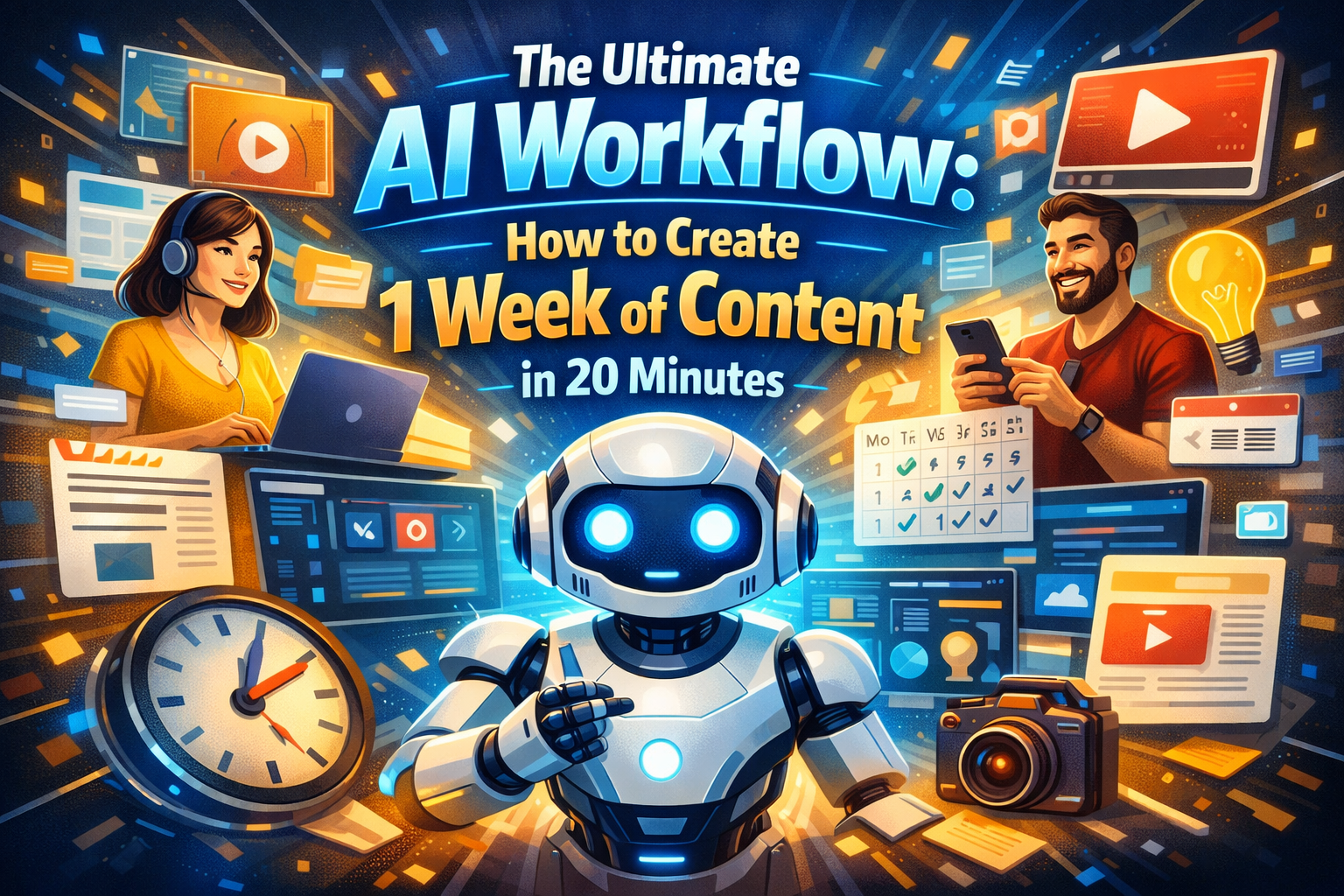
In this guide, I’m going to share a specific, battle-tested workflow. We are going to take a raw topic and turn it into a high-quality, visually stunning carousel (or slide deck) in under 20 minutes.
The "Holy Trinity" Tech Stack
To execute this workflow, you don't need expensive enterprise software. You need these three accessible tools:
-
The Brain: ChatGPT (Plus is best, but free works) or Claude 3.
-
The Artist: MidJourney (for premium visuals) or DALL-E 3 (for ease of use).
-
The Assembler: Canva Pro (specifically for the "Bulk Create" feature).
Step 1: The Architect (Structured Ideation)
Most people fail at step one because they treat AI like a search engine. They ask, "Give me ideas for a post about coffee." The result? Generic, Wikipedia-style fluff.
Instead, we need to treat AI like a Content Strategist. We need it to output data in a specific format that we can use later.
📋 The Copy-Paste Prompt
Copy this exact prompt into ChatGPT:
"Act as an expert social media strategist. I want to create an educational Instagram Carousel (5 slides) about [INSERT YOUR TOPIC HERE].
Please generate the content in a Table Format with the following columns:
Slide Number
Headline (Punchy, under 7 words)
Body Text (Actionable, under 25 words)
Image Prompt (A detailed description I can feed into an AI art generator, describing a minimalist, high-quality 3D render style)."
Why this works: By asking for a Table Format, you are structuring the data for Step 3. By asking for Image Prompts, you are saving yourself the brainpower of thinking about visuals.
Step 2: The Artist (Visual Asset Generation)
Now, look at the "Image Prompt" column ChatGPT just gave you. We are going to turn those words into professional graphics.
Option A: The Pro Route (MidJourney)
If you want your brand to look premium, use MidJourney via Discord.
-
Type
/imagine -
Paste the description from your ChatGPT table.
-
Add this suffix for consistency:
--ar 4:5 --style raw --v 6.0-
--ar 4:5 ensures it fits mobile screens perfectly.
-
Option B: The Fast Route (DALL-E 3)
If you have ChatGPT Plus, you can simply say:
"Generate the images for slides 1 through 5 based on the descriptions in the table above. Use a consistent flat-vector style."
💡 Pro Tip: Don't settle for the first result. If the text on the image is garbled (AI struggles with text), use the visuals as backgrounds and overlay your text in the next step.
Step 3: The Assembly (The Canva Bulk Create Hack)
This is the secret sauce. This step is what separates the pros from the amateurs. We are not going to copy-paste text onto 5 different slides manually.
-
Export Your Data: Go back to ChatGPT. Ask it to "Convert that table into a CSV format." Copy the code it gives you and save it as
content.csv(or paste it into Google Sheets and download as CSV). -
Open Canva: Search for "Instagram Carousel" and pick a template you like.
-
Setup the Template:
-
Click the Headline text box on the canvas.
-
Click the Body text box.
-
-
The Magic Button:
-
On the left sidebar, scroll down to Apps and search for "Bulk Create".
-
Click "Upload CSV" and select your file.
-
-
Connect Data:
-
Right-click your Headline element on the canvas -> Connect Data -> Select "Headline".
-
Right-click your Body text element -> Connect Data -> Select "Body Text".
-
-
Generate: Click "Continue" and then "Generate Designs."
BOOM. Canva will instantly generate 5 separate pages with your perfectly formatted text. All you have to do now is drag and drop your MidJourney images into the background.
The Result: By The Numbers
Let's look at the ROI of this workflow compared to the traditional method.
|
Metric |
Old Way (Manual) |
AI Workflow (Chained) |
|---|---|---|
|
Brainstorming |
30 Mins |
2 Mins |
|
Drafting |
45 Mins |
3 Mins |
|
Design |
60 Mins |
10 Mins |
|
Total Time |
2+ Hours |
~15 Minutes |
Final Thoughts: The Human Touch
A workflow makes you fast, but your insight makes you unique.
Once Canva has generated your slides, spend 5 minutes adding your "flavor." Change a generic word to something you would actually say. Add your logo. Check the tone.
AI is the engine, but you are still the driver. Use this workflow to reclaim your time so you can focus on what actually matters: engaging with your audience in the comments.
Did you try this workflow? Screenshot your results and tag me on [Social Platform] – I’d love to see what you build.